
How to Generate a Retail Store Eco Score
This step‑by‑step guide explains how brand‑users can create a Composite Eco Score Project for a retail store, organize products by groups, analyze impacts, generate reports, and use analytics.
Introduction
About Store & Shop Eco Scores
1. What Is the Eco Score?
Understand your store’s environmental impacts.
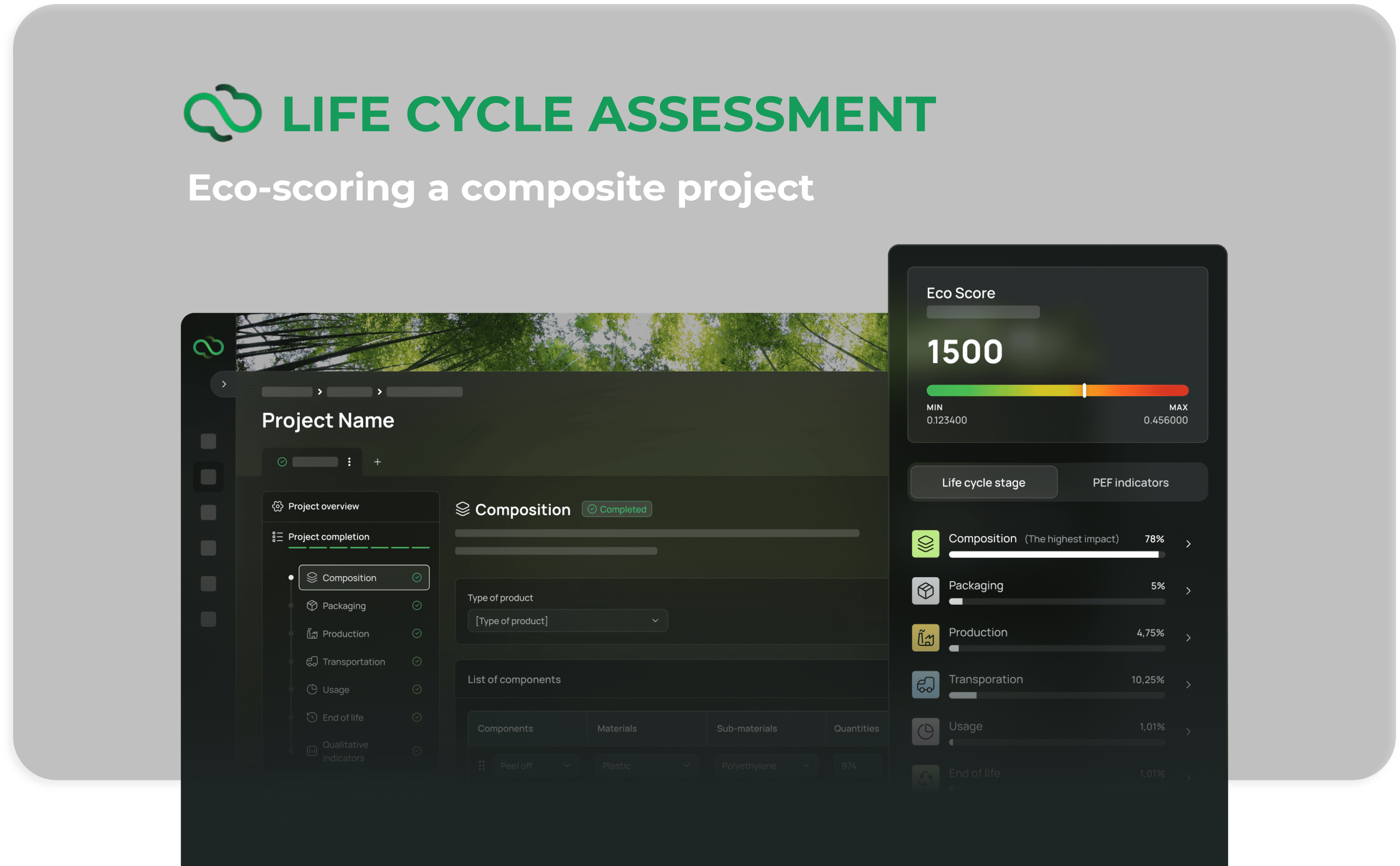
For retail stores and shops, the Composite Project Eco Score provides a standardized environmental rating at store-level. Using Composite Projects, EcoDesignCloud aggregates the environmental impacts of multiple products delivered by different suppliers across all lifecycle stages — from raw materials to end‑of‑life.
2. How the Eco Score Is Calculated
Data‑driven, lifecycle‑based aggregation.
EcoDesignCloud uses certified LCA methodologies and validated data from closed Single Projects. In a Composite Project, each selected Single Project contributes to the global Eco Score based on its Eco Score and ordered quantities, ensuring consistency and traceability.
3. Why the Eco Score Matters
Make informed retail design and sourcing decisions.
The Eco Score allows brand‑users to assess store designs, shopfiting and merchandising concepts, analyze multi‑supplier sourcing strategies, and to get footprint reporting and analytics.
Step 1
Create a New Composite Project
From Current Projects, click Create a new project.
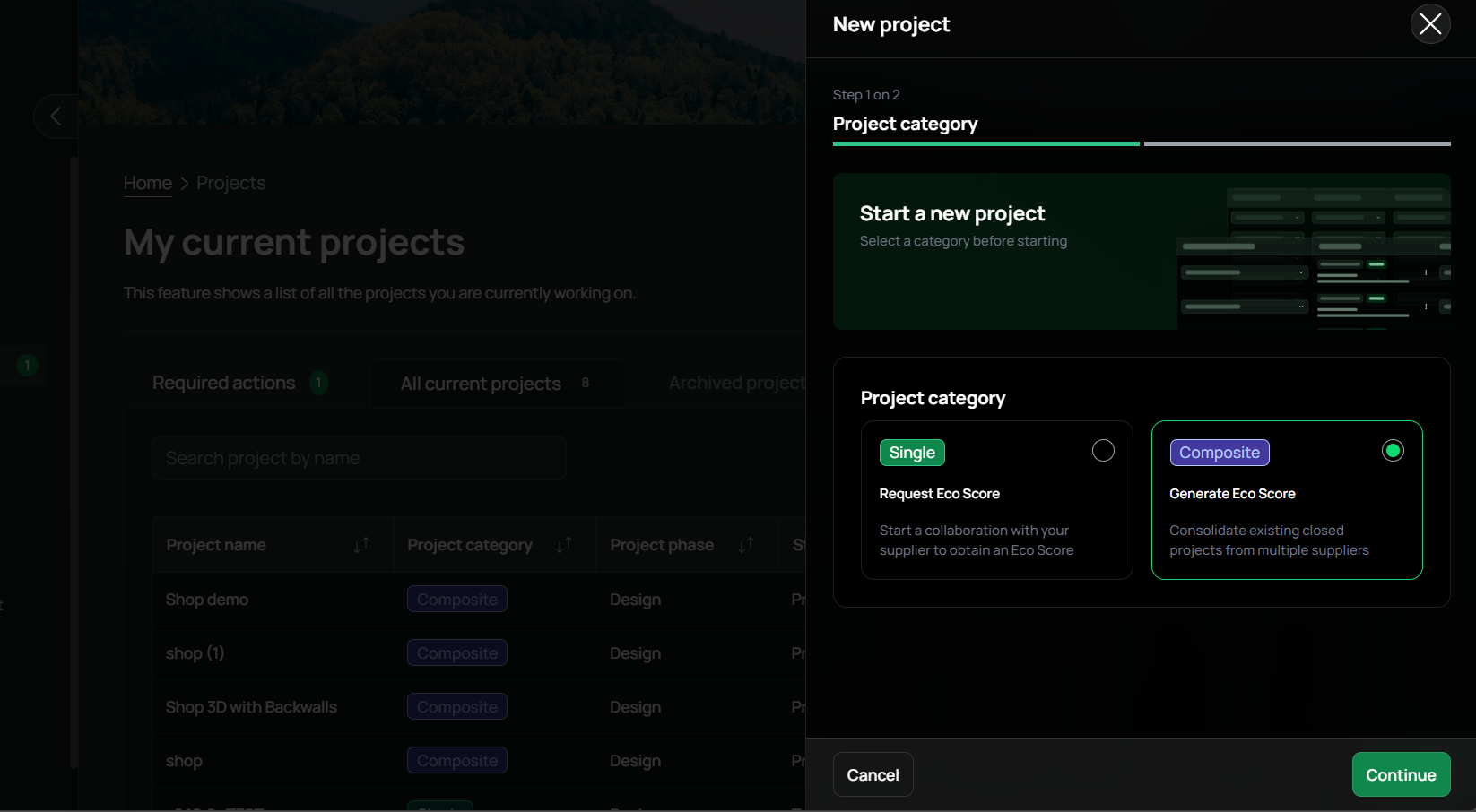
Step 1 - Project category selection :
- Select the composite "Generate Eco Score" category and click on "Continue"
- Only Store & Shop Types/Classes defined as Composite will be available in the project details.
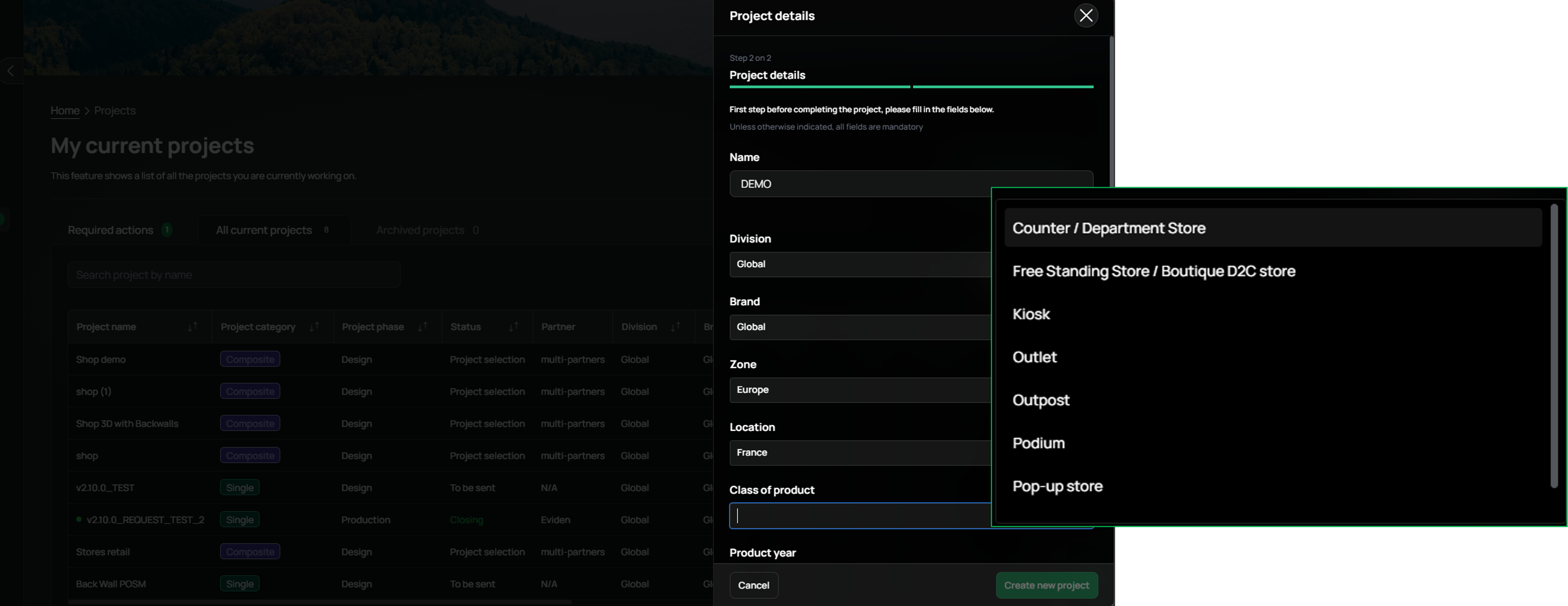
Step2 - Project creation drawer:
- Fill in the project details (name, division, brand, location, year, etc.)
- Select a type/class of Store & ShopType/Class (e.g. Podium, Pop‑up Store)
Step 2
Project Overview
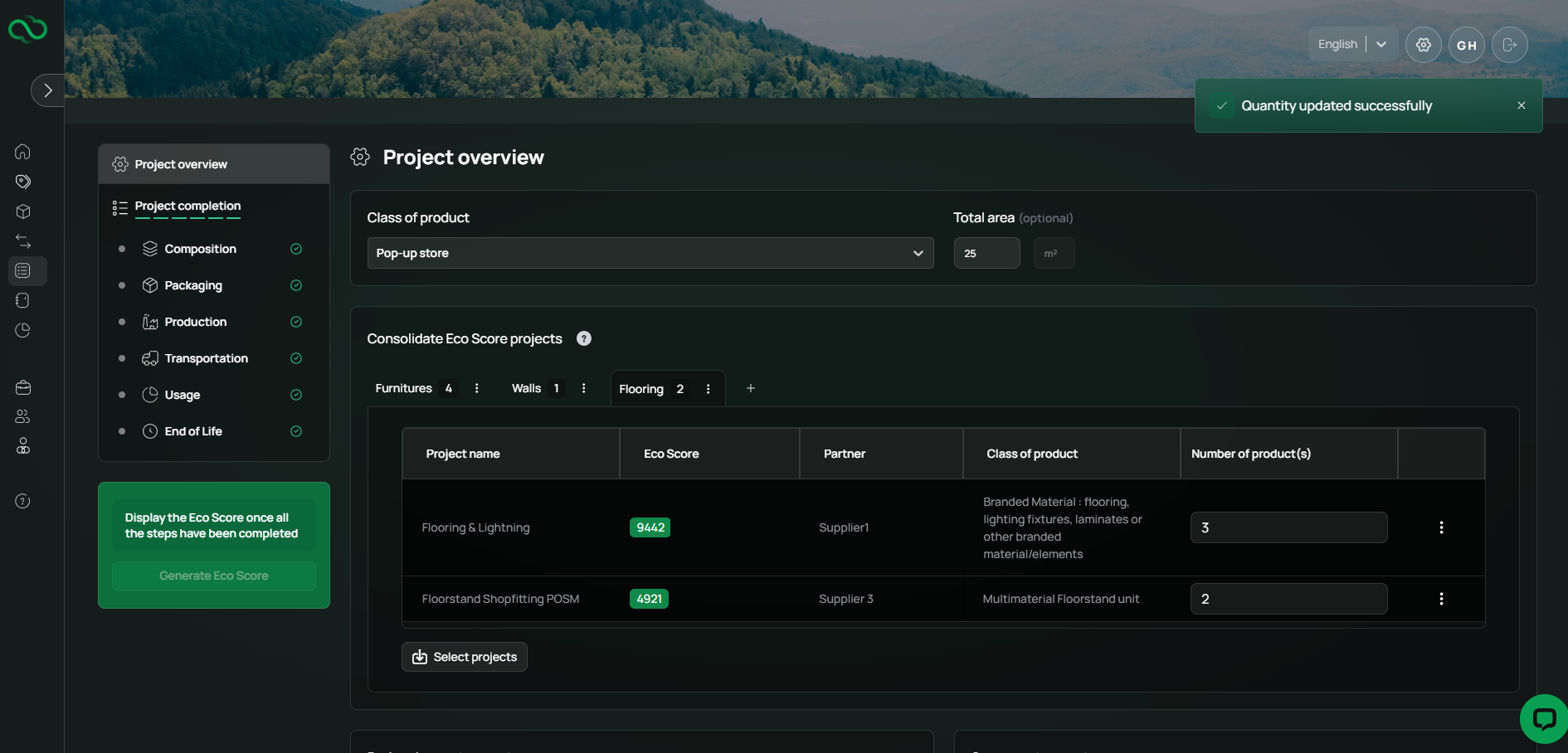
1- Optional Field – Total Area (m²)
You can register the Total store area in square meters (m²).
2- Organize Your Store with Group Tabs
Composite Projects allow you to categorize products using groups, displayed as tabs, representing store areas or functional zones or design perimeters.
- A “Main” group is created by default
- You can rename it
3- Manage Groups
You can:
- Add as many groups as needed
- Rename groups
- Delete groups
→ Deleting a group removes the associated Single Projects from the Composite Project.
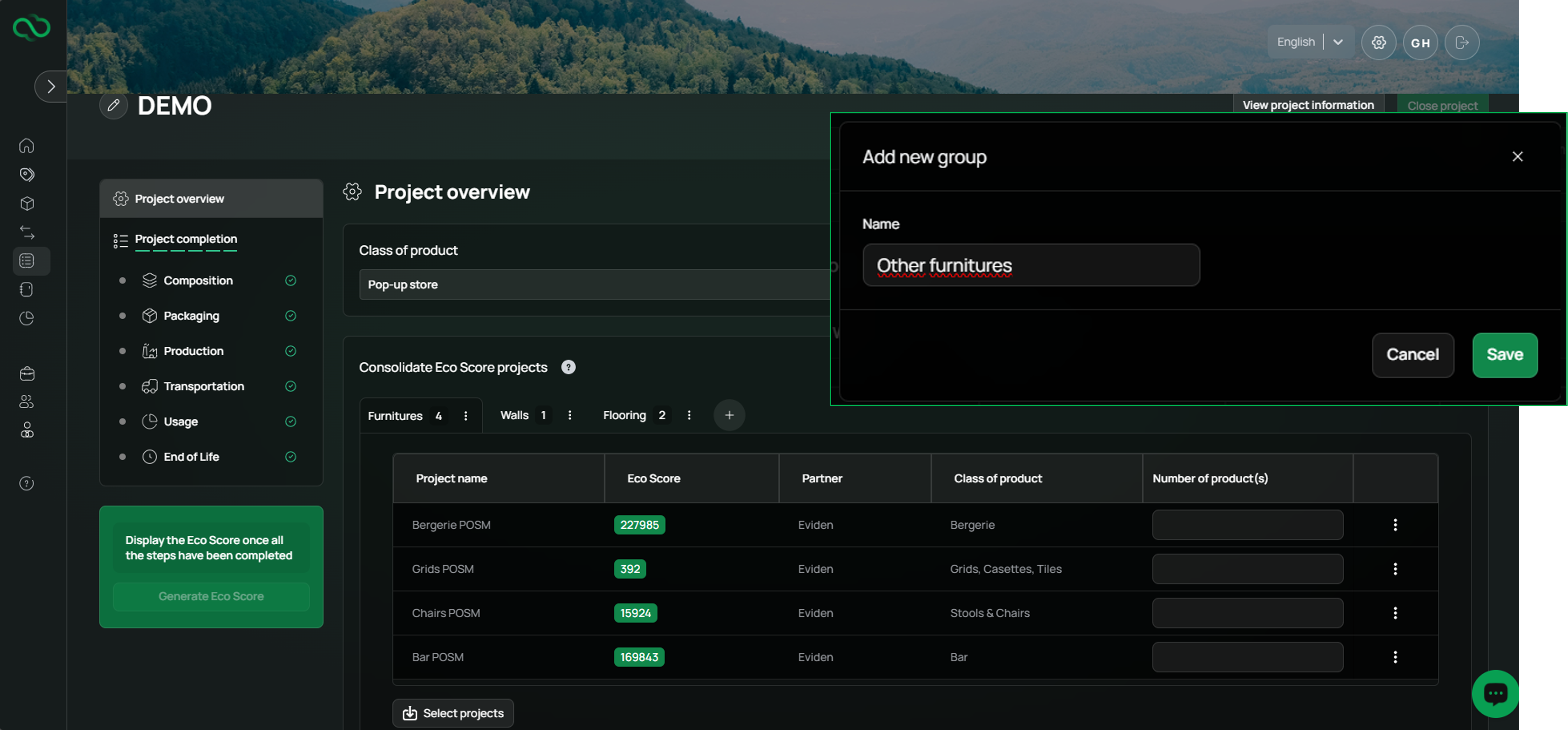
4- Group Navigation
- Navigate between groups using tabs
- Groups are visible in all LCA stages, but they need to be created in the project overview
5- Select Single Projects per Group
Inside each group:
Click Select Projects
Browse your Single Projects:
- Only closed Single Projects from the Library can be selected
- Only the single project that appears under your brands, divisions and location can be selected.
- To view and use all necessary projects, you must configure your User Divisions, Brands and Locations.
- Select as many projects as needed.
- Define the number of products you want to use for your composite project.
6- Project Table Information
The Project Overview table displays:
- Project name
- Partner
- Class of product
- Number of product
7- Dots Menu Actions
For each selected project, you can:
- Go to the Single Project
- Delete projects from the table
Step 3
Review LCA Stages
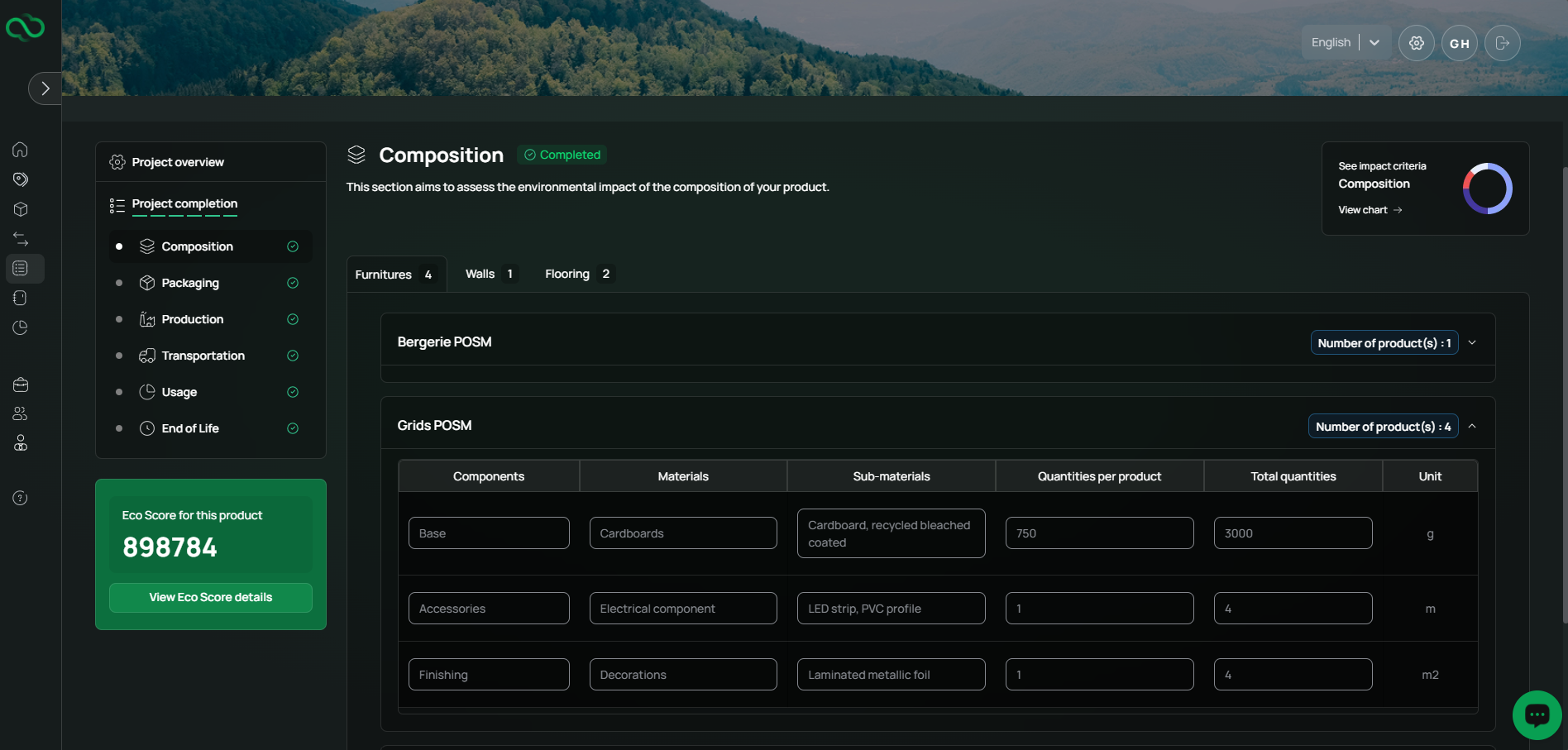
All environmental data is automatically populated from the selected Single Projects.
Group‑based Navigation
In every LCA stage:
- Group tabs are visible
- You can open each Single Project accordion to view details
Step 4
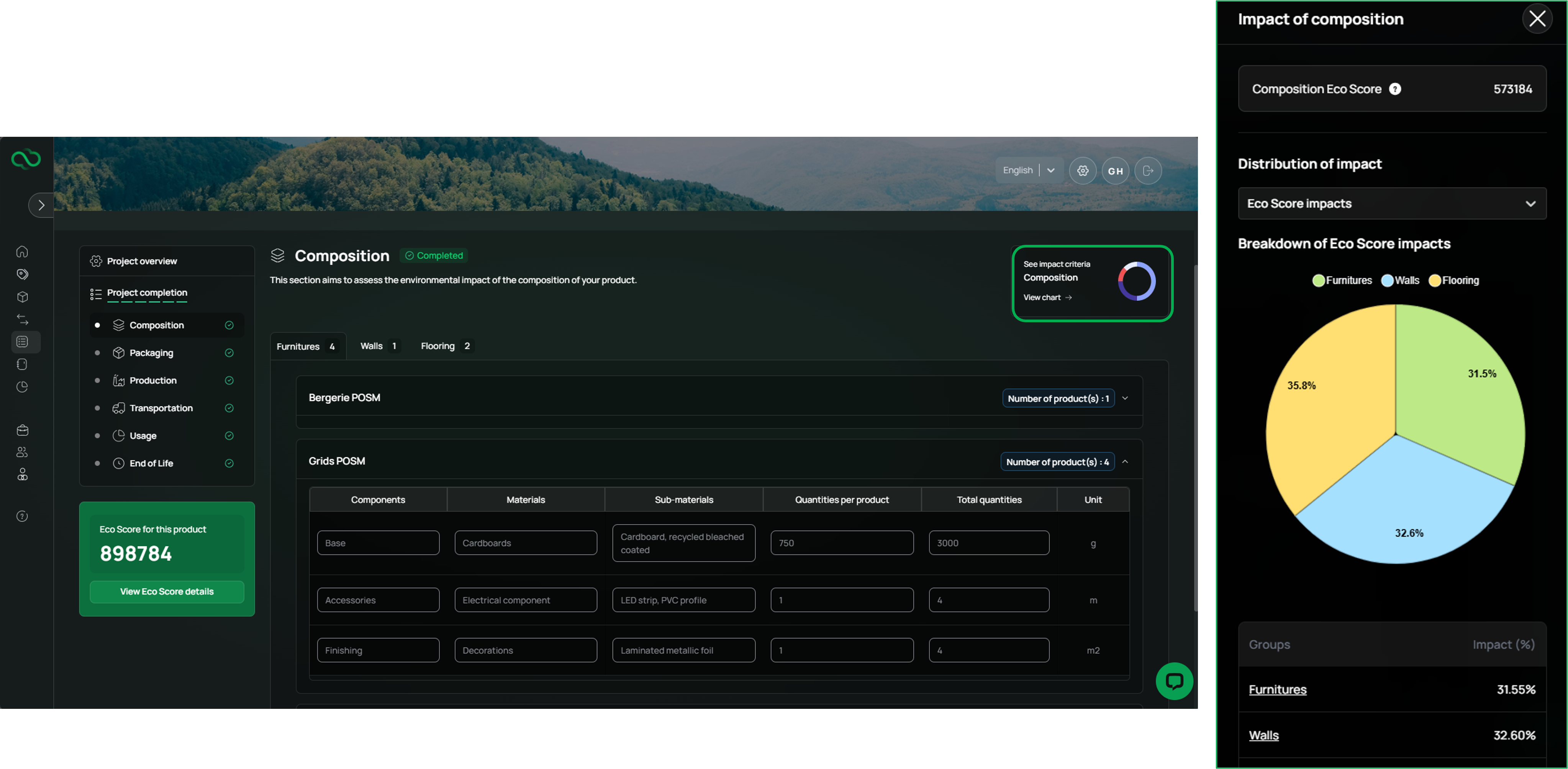
Visualize Impacts by LCA stages with the Drawer Analysis
At each stage, click View chart to open the Impact Drawer.
Available Views
- Eco Score or PEF indicator
- Breakdown by: Groups, Single Projects, Components / materials (Composition, Packaging & Production)
Navigation
- Use the dropdown to switch between Eco Score and PEF indicators
- Click a group name to view its internal project breakdown
- Click a Single Project to drill down further
Step 5
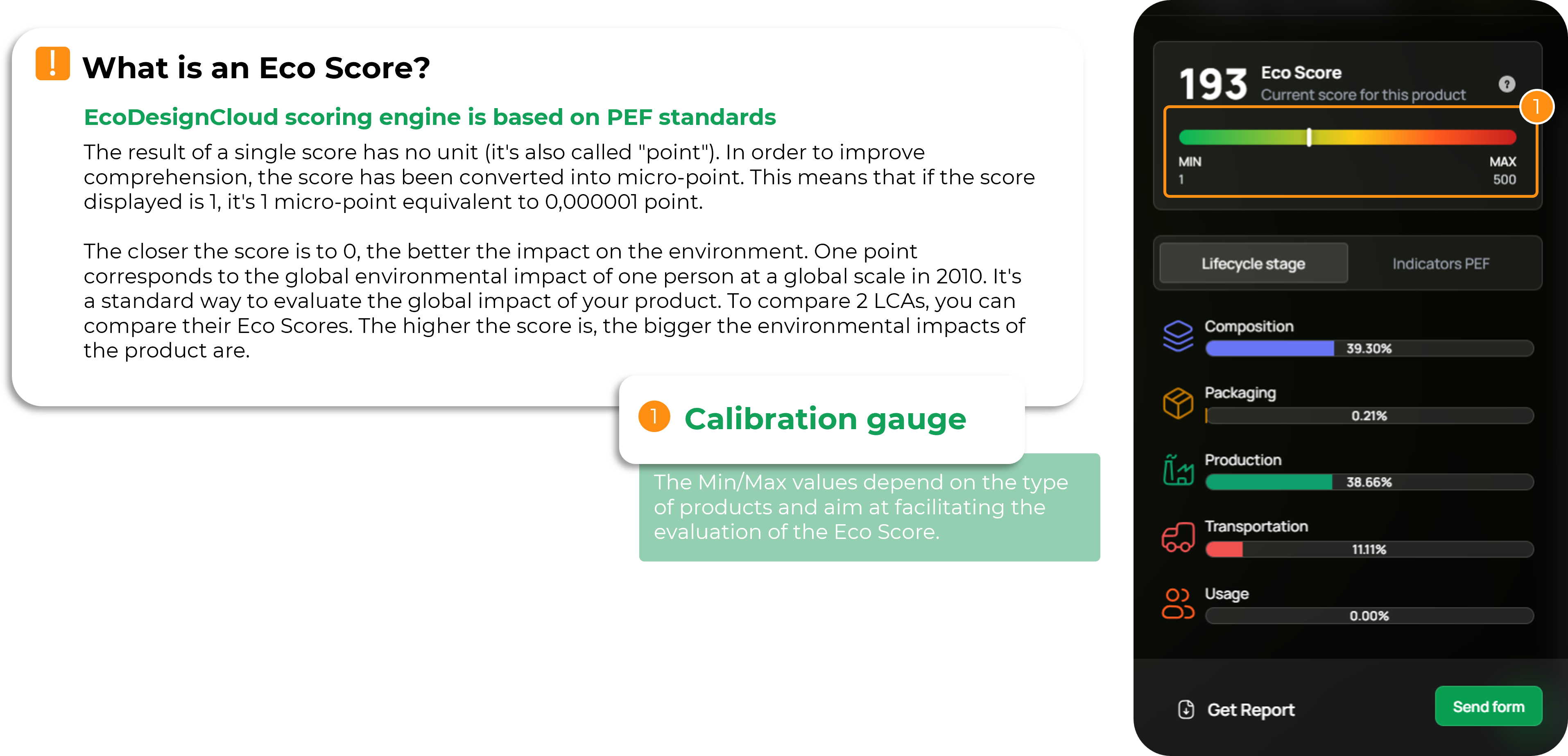
Generate the Composite Eco Score
Mandatory:
- At least 2 Single Projects are selected
- Mandatory fields are complete and LCA stages have a green checkmark, click Generate Eco Score.
Eco Score Calculation
The Composite Eco Score equals:Sum of (Single Project Eco Score × number of product).
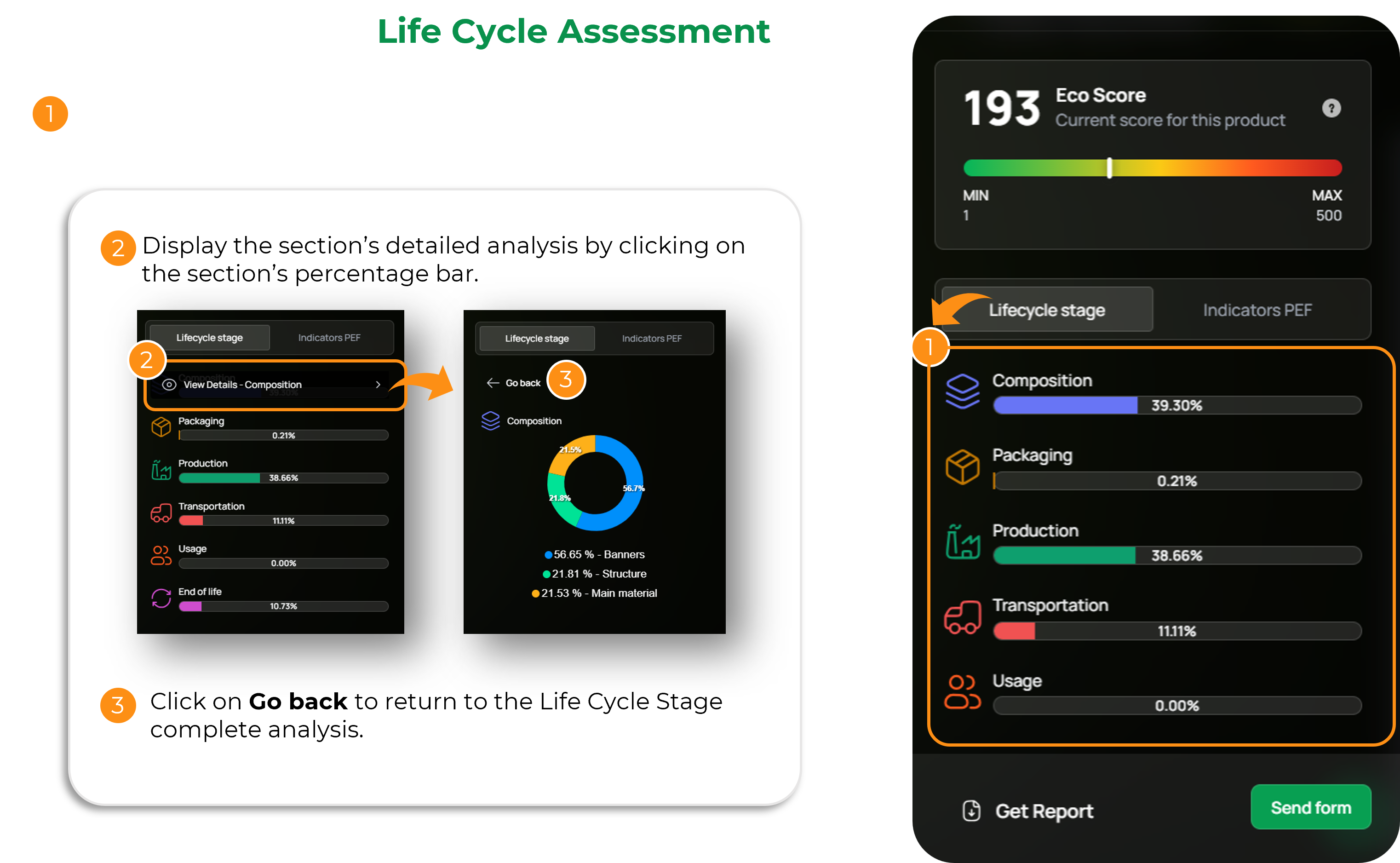
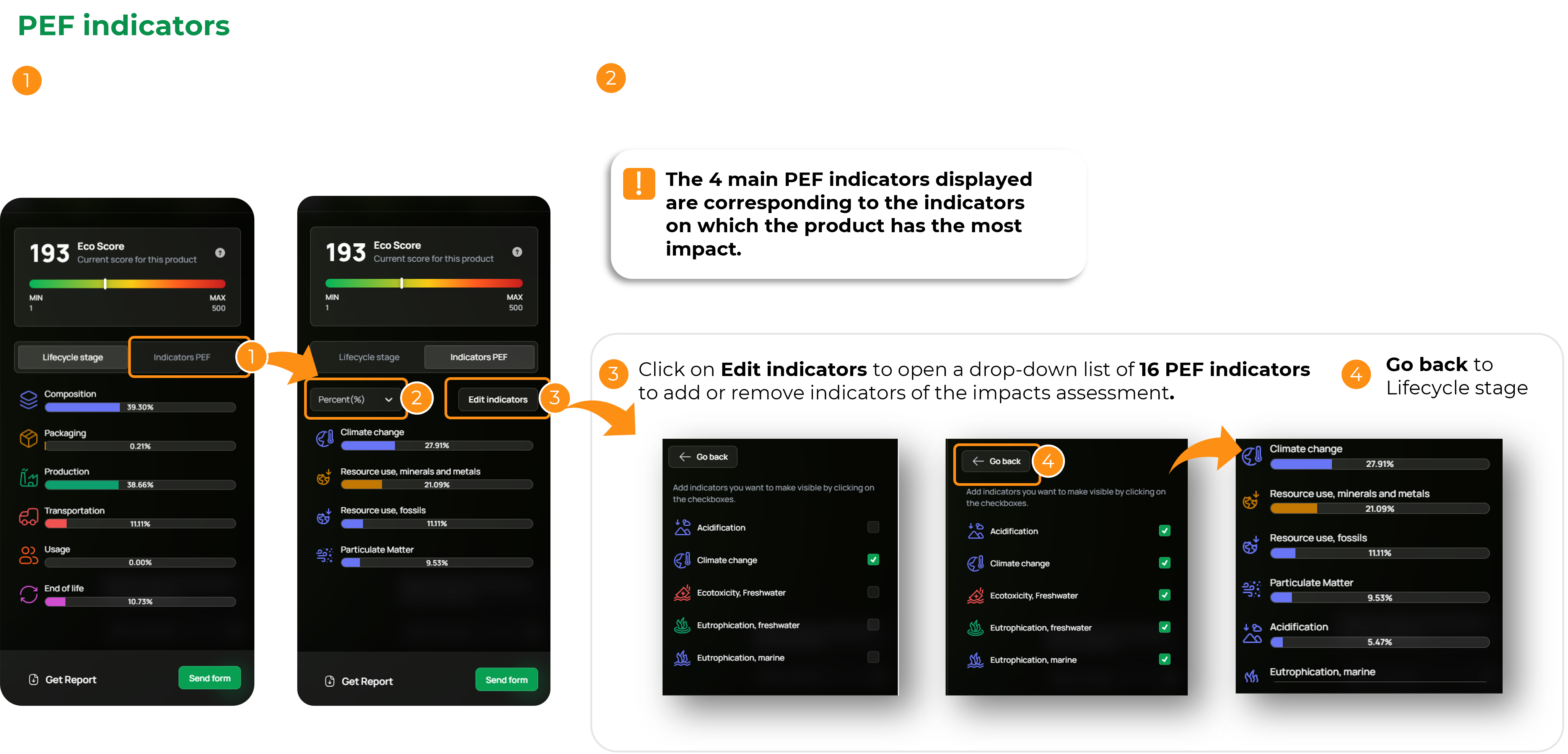
Step 6
Export Reports (PDF & XLS)
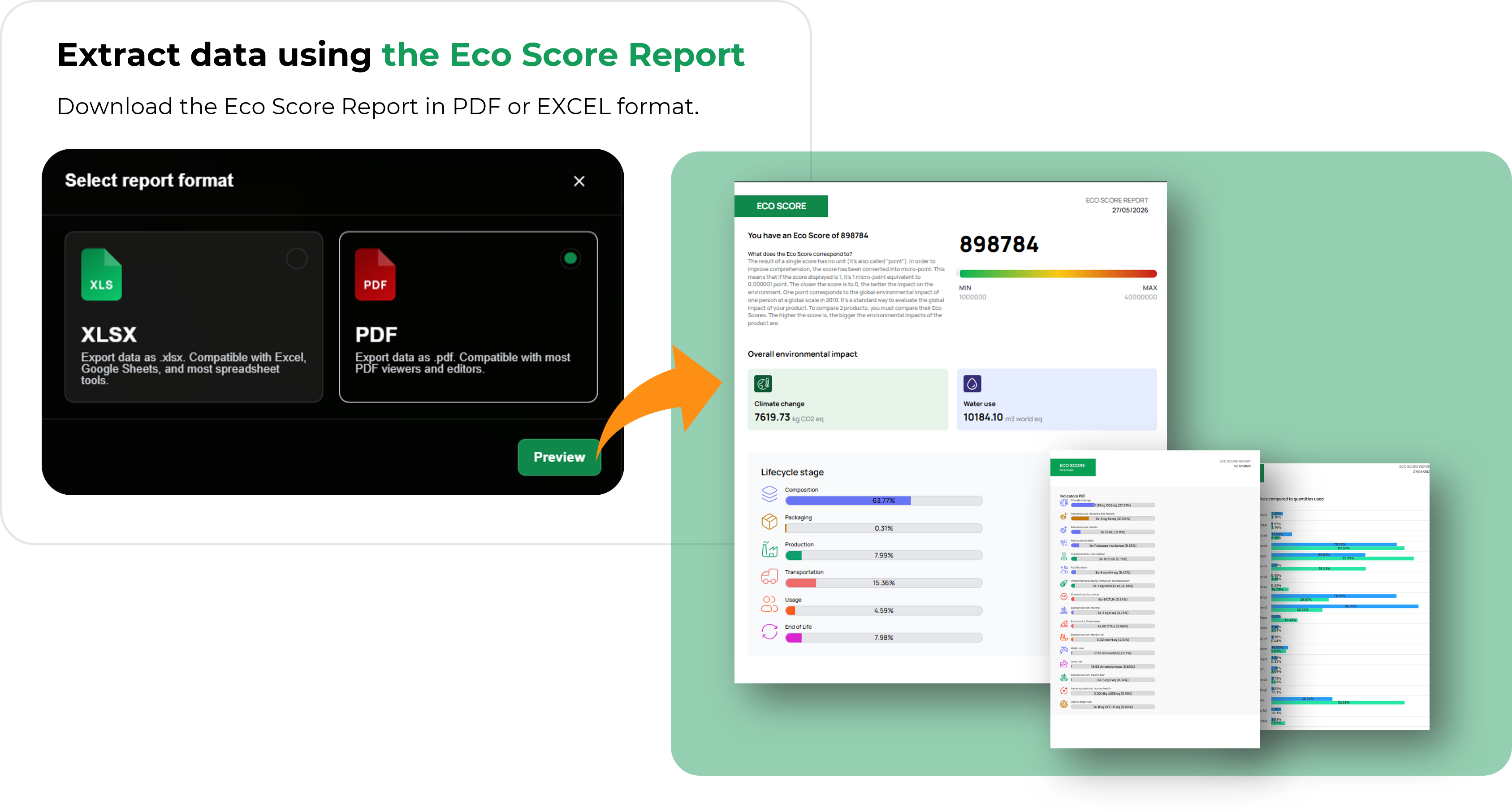
PDF Eco Score Report
- Generate and download the Composite Eco Score PDF
- Includes lifecycle breakdowns, materials charts, and key indicators at store level
XLS Eco Score Report
Download a detailed XLS file, it Includes:
- Project overview
- Total area (m²)
- Group structure
- Lifecycle data
- Impact results (PEF indicators)